
How to Code a Session High and Low Indicator in Pine v6
By HorizonAI Team · 11 min read · Intermediate
Code a Session High and Low Indicator in Pine Script v6
A session high and low indicator sounds simple until its levels reset an hour late, vanish after the session closes, or use the exchange's timezone when you meant New York. The fix is to make the session definition, timezone, reset condition, and post-session display explicit.
Short answer: Use input.session() to collect a session string, then test each bar with time() in the chosen timezone. When the first bar of that session arrives, reset two persistent variables to high and low; while the session remains active, update them with math.max() and math.min(). Plot the stored values and, if wanted, keep them visible after the session for breakout alerts.
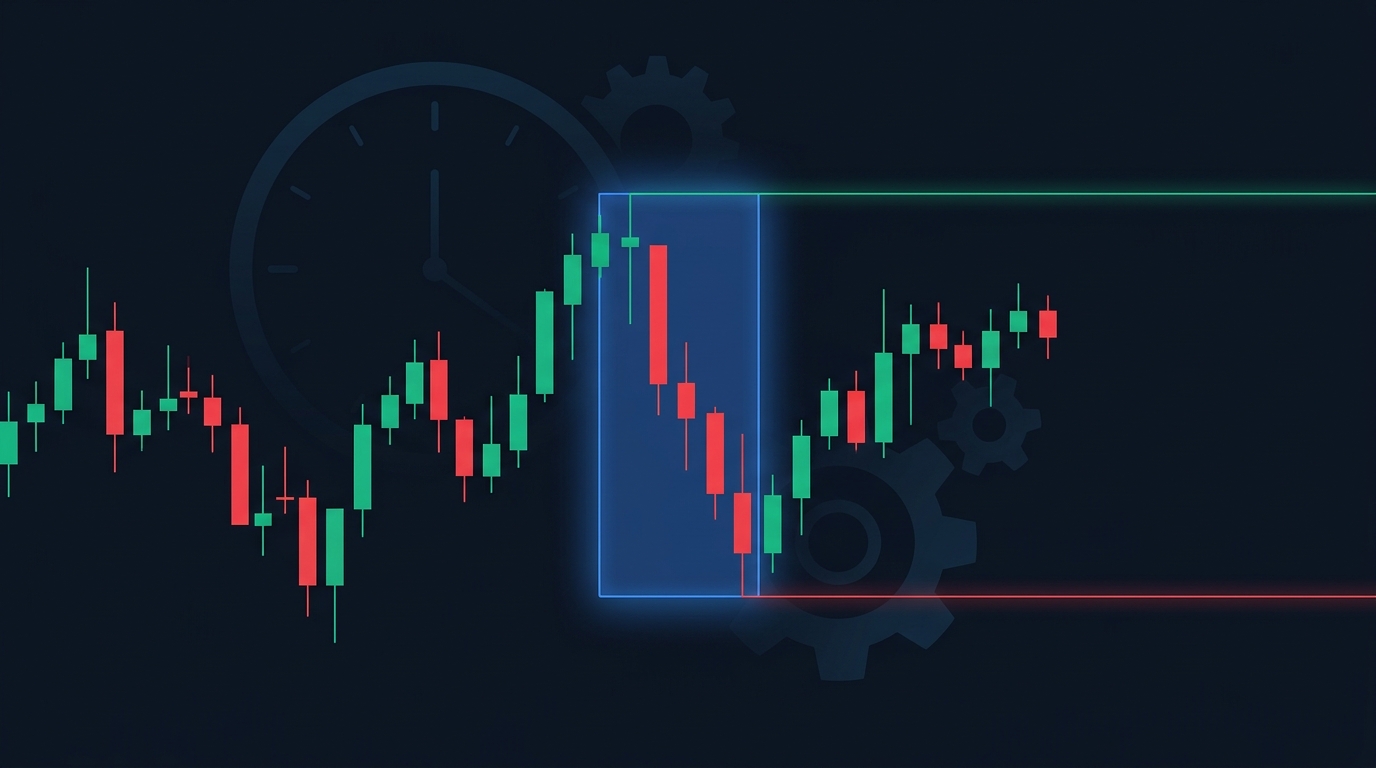
The build below is an overlay indicator for any intraday session, including London, New York, an opening range, or a custom overnight window. It shades active bars, tracks the range without carrying yesterday's values into today, extends finished levels until the next session begins, and exposes alert conditions when price closes through either level.
What you’re building and why the reset matters
The indicator has one job: record the highest high and lowest low printed inside a defined time window. It isn’t a rolling 20-bar high/low. At the next instance of that window, it must forget the previous range and start a new one.
That distinction matters on a 5-minute chart. If your New York cash session is 0930-1600 in America/New_York, the high at 15:55 is the session high. At 09:30 on the next eligible day, the script needs to reset immediately, even if price never revisited the prior day’s range.
Pine’s session tools are the right foundation. A time-based session string defines the window, and time() returns a timestamp only on bars that fall within it. TradingView documents both the session-string rules and the timezone-aware time() overload in its sessions guide and time concepts reference.
Set the session string and timezone deliberately
A session string uses HHMM-HHMM. For example:
| Use case | Session string | Timezone input |
|---|---|---|
| New York cash equities | 0930-1600 | America/New_York |
| London morning window | 0800-1100 | Europe/London |
| New York morning window | 0830-1100 | America/New_York |
| Overnight Asia window | 2000-0200 | America/New_York |
The timezone is not cosmetic. If you omit it, Pine evaluates time functions using the symbol’s exchange timezone. That can be fine for an exchange-traded stock chart, but it can make a forex or crypto session look displaced from the clock you trade.
Use an IANA timezone such as America/New_York or Europe/London, not a fixed UTC offset such as UTC-5, when daylight-saving transitions matter. America/New_York changes with the local clock. A fixed offset does not.
How overnight sessions behave
A session whose end time is earlier than its start time crosses midnight. 2000-0200 means 20:00 through 02:00 the following calendar day. You do not need special date arithmetic for that case. time() handles the membership test, and the first qualifying bar after 20:00 is your reset point.
The subtle part is interpreting the label. An overnight range that starts Sunday at 20:00 New York time is usually treated as the session that began Sunday, even though its final bars print after midnight. Keep the session name in your indicator settings unambiguous.
Build the complete session high and low indicator
Paste this into a new TradingView Pine Editor script, save it, then add it to an intraday chart. The defaults track the New York morning window from 08:30 to 11:00 in New York time.
//@version=6
indicator("Custom Session High and Low", overlay = true)

// Session settings
sessionInput  = input.session("0830-1100", "Session")
timezoneInput = input.string("America/New_York", "Session timezone")
showExtension = input.bool(true, "Extend levels after session")
extensionStyle = input.string("Line", "Extension style", options = ["Line", "Step"])
highColor     = input.color(color.lime, "High color")
lowColor      = input.color(color.red, "Low color")
shadeColor    = input.color(color.new(color.blue, 88), "Active session shade")

// A timestamp exists only when the current bar belongs to the chosen session.
inSession = not na(time(timeframe.period, sessionInput, timezoneInput))
sessionStarted = inSession and not inSession[1]

// Persistent values hold the range after its session has ended.
var float sessionHigh = na
var float sessionLow = na

if sessionStarted
    sessionHigh := high
    sessionLow := low
else if inSession
    sessionHigh := math.max(sessionHigh, high)
    sessionLow := math.min(sessionLow, low)

// Keep levels visible during the session. Extend them afterward only when enabled.
highToPlot = (inSession or showExtension) ? sessionHigh : na
lowToPlot = (inSession or showExtension) ? sessionLow : na
plotStyle = extensionStyle == "Step" ? plot.style_stepline : plot.style_linebr

plot(highToPlot, "Session High", color = highColor, linewidth = 2, style = plotStyle)
plot(lowToPlot, "Session Low", color = lowColor, linewidth = 2, style = plotStyle)
bgcolor(inSession ? shadeColor : na, title = "Active session")

// Alert only after the range is complete, so a new high inside the session isn't a breakout.
breaksHigh = not inSession and not na(sessionHigh) and ta.crossover(close, sessionHigh)
breaksLow = not inSession and not na(sessionLow) and ta.crossunder(close, sessionLow)

alertcondition(breaksHigh, "Session high break", "{{ticker}} closed above the selected session high.")
alertcondition(breaksLow, "Session low break", "{{ticker}} closed below the selected session low.")
The code uses var because session levels must persist from bar to bar. Without var, sessionHigh and sessionLow would be initialized again on every calculation and could never represent the whole range.
sessionStarted is the key reset event. It is true only when the current bar is inside the session while the preceding bar was outside it. On that bar, the range initializes from the current high and low. Every later in-session bar expands the saved range if necessary.
Practical test: add the script to a 5-minute chart, set the session to
0930-1000, and scroll across two trading days. The lines should reset on the first 09:30 bar each day, build only until 10:00, and then remain horizontal if extensions are on.
Understand each setting before you change it
sessionInput
This is the clock window. Start with a single continuous range such as 0830-1100. Pine session strings can support more advanced definitions, but a single range is the cleanest way to validate the reset and range logic first.
If you want an opening range instead of a full session, use a short window. For a 30-minute US cash opening range, set 0930-1000 and America/New_York. The same code then becomes a compact opening-range tool. If you build this concept in NinjaTrader instead, the mechanics differ because NinjaScript uses session templates and bar time handling, as shown in our opening range breakout indicator tutorial.
timezoneInput
Keep the timezone aligned to the event you are measuring, not necessarily to the chart’s symbol. A US index futures trader who wants the New York stock-market opening range should normally select America/New_York, including when the chart uses a different exchange timezone.
TradingView’s time documentation explains that timezone arguments affect calendar and time-function calculations; they do not change the chart’s displayed bar timestamps. That’s why your labels may still appear in the chart timezone while the membership logic follows your selected session timezone. See the Pine time documentation for the distinction.
showExtension and extensionStyle
With extensions on, the finished session high and low remain on the chart until the next session starts. That gives you stable reference prices for a post-session break or retest. Turn extensions off when you only want to inspect the range while it forms.
Choose Line for a clean horizontal level. Choose Step when you want the visual history to show each update as the high or low changes during the active window. Neither option changes the calculations.
Colors and shading
The background shading has a diagnostic purpose beyond presentation. If the shade starts or ends at the wrong bar, fix the session string or timezone first. Do not troubleshoot the high/low variables until the shaded membership window is correct.
Add alerts that only fire after the session completes
A session high is supposed to update while the session is live. An alert every time that happens is usually noise, not a breakout signal. The script’s two alertcondition() calls wait until not inSession, then look for the close crossing above the saved high or below the saved low.
After adding the script to a chart, create a TradingView alert and select either Session high break or Session low break from the condition menu. TradingView’s alerts documentation covers how alert conditions become selectable alerts and how their messages are used.
Use Once Per Bar Close for these close-based conditions. The code tests close, so alerting before a candle closes can create a mismatch between what you saw intrabar and what the condition confirms at the close.
A close through the level is a defined event, not an entry instruction. You might use it to flag a chart, then assess structure, liquidity, or a retest with your own rules. For an automated alert workflow that has its own common configuration failures, see why Pine Script alerts fail and how to fix them.
Why your session boundary can look wrong
Most apparent calculation errors are time-definition errors. Work through these checks in order.
-
Confirm the chart is intraday. On daily, weekly, and monthly bars, a single bar can span all or part of the session. A 60-minute or lower chart gives the cleanest result for an 08:30 to 11:00 window. Match the chart resolution to the precision you need.
-
Inspect the background shade. If it is shifted exactly by an hour during part of the year, you probably used a fixed UTC offset rather than an IANA region. Switch from
UTC-5toAmerica/New_Yorkfor a New York-defined session. -
Check the symbol’s trading hours. A script cannot detect bars that the chart does not contain. On a regular-hours stock chart, premarket bars may be absent. A
0800-0930session cannot build from missing 08:00 to 09:29 data. -
Check the session start against bar boundaries. On a 15-minute chart,
0930aligns cleanly. A session beginning at0935does not have a dedicated opening bar on that timeframe, so the first bar that Pine can classify may not represent the exact five-minute boundary you expected. -
Avoid
time_close()for this range test.time()tests whether the bar’s opening time falls within the session. That makes the start event predictable for a bar-based session high/low indicator.time_close()answers a different question.
If you use higher-timeframe values from request.security() alongside session levels, test the combination carefully. Higher-timeframe data handling can introduce apparent changes to historical values if it is configured poorly. Our guide to Pine Script repainting and its fixes explains the common traps.
Common mistakes that corrupt session levels
❌ Mistake: Resetting on every bar outside the session. Code like if not inSession sessionHigh := na erases the very level you want to extend after the window closes.
✅ Do this: Reset only on sessionStarted. Keep the stored values untouched outside the session, then decide visibility separately with showExtension.
❌ Mistake: Using high > sessionHigh before initialization. The comparison produces unreliable logic when sessionHigh is still na.
✅ Do this: Initialize both values to the first session bar’s high and low, then use math.max() and math.min() on later bars.
❌ Mistake: Defining New York as UTC-5 all year. It will shift during daylight-saving time.
✅ Do this: Use America/New_York. Use Europe/London for a London-clock session. IANA regional names preserve local daylight-saving behavior.
❌ Mistake: Treating an alert on an in-session new high as a completed-range breakout. The high is still moving, so the threshold is not final.
✅ Do this: Gate the cross condition with not inSession, as the script does, and create the TradingView alert on bar close.
Pro tips for turning levels into a repeatable chart workflow
Build one indicator per purpose before combining them. Start with a 30-minute opening range, validate it across at least two weeks of chart history, then create a separate session version for the London or Asia range. Separate presets make timezone and boundary errors easier to spot.
Use a timeframe no larger than one quarter of the session length. For a 30-minute opening range, 1-minute or 5-minute bars provide useful detail. For a 3-hour morning range, 5-minute or 15-minute bars are usually enough. The smaller the timeframe, the closer the captured high and low are to the intended clock window.
Keep break logic separate from trade logic. A close above a session high can be a continuation, a sweep, or the first leg of a failed breakout. If you later convert this into a strategy, state the entry trigger, invalidation, stop distance, and exit rule independently. The break and retest strategy guide is a useful framework for specifying that second layer.
Use the shade as a unit test. Change the session temporarily to 0930-1000, inspect the shaded bars, and only then trust the levels. It is faster than inspecting values in the Data Window after the fact.
Generating this without writing the code yourself
You can describe this exact tool in HorizonAI and ask for a Pine Script v6 indicator. For example:
Create a Pine Script v6 overlay indicator called “Custom Session High and Low.” Add
input.sessionnamedsessionInputwith default0830-1100, plus a string timezone input namedtimezoneInputdefaulting toAmerica/New_York. Detect session membership withtime(timeframe.period, sessionInput, timezoneInput). On the first in-session bar, reset persistent session high and low values; while in session, update them withmath.maxandmath.min. Shade active session bars, plot the high and low in user-selectable colors, add a booleanshowExtension, a Line or Step extension style input, andalertconditionrules for a close above the completed high and below the completed low. Use Pine v6 syntax and comments.
HorizonAI returns Pine Script code you can edit in chat or in its Monaco editor, with compiler validation to catch code errors. It generates the script, but you copy it into TradingView and control any alerts or trading decisions yourself. Try it free →
FAQs
How do I plot the London session high and low in Pine Script?
Set the session input to the London window you trade, such as 0800-1100, and set the timezone to Europe/London. The same reset-and-update logic works without modification.
Why does my session indicator shift by one hour?
The usual cause is a fixed UTC offset that does not observe daylight saving time, or a mismatch between the intended session timezone and the symbol’s exchange timezone. Use an IANA timezone such as America/New_York, then verify the shaded bars.
Can this script track an overnight session?
Yes. Use a session string whose end time is earlier than its start time, such as 2000-0200. Pine interprets that as a session crossing midnight.
Why are my session levels missing on a daily chart?
This indicator needs intraday bars to identify the session window precisely. On a daily chart, the bar spans too much time to form a reliable intraday session range.
Final thoughts
A reliable session high/low indicator is built around one precise rule: reset once at the session’s first bar, then preserve the finished range until the next reset. Define the session in the local market clock, verify it with background shading, and let alerts wait until the range is complete.
A useful final check is to compare the plotted high and low against the visible candles at 1-minute resolution for three separate days, including a daylight-saving transition period if your market uses one. That catches timezone and boundary mistakes before they become part of your workflow.
Related articles
- Pine Script Tutorial for Beginners — Learn the Pine building blocks behind custom TradingView tools.
- Why Pine Script Repaints and How to Fix It — Prevent historical charts from misleading you when you add higher-timeframe logic.
- Why Pine Script Alerts Fail, and the Fixes That Work — Configure and troubleshoot TradingView alert conditions.
- Build an Opening Range Breakout Indicator in NinjaScript — Apply time-window range logic in NinjaTrader 8.
- Break and Retest Strategy — Add a structured confirmation layer after a session-level break.
- Build a Trading Dashboard Table in Pine Script v6 — Display session state and values in a compact chart table.
- How to Use Bar Magnifier in a Pine Script v6 Strategy — Improve intrabar precision when you later test strategy rules.
- Create a Custom NinjaTrader 8 Indicator With NinjaScript — Build and compile a chart indicator in NinjaTrader.
Questions about session high and low indicators? Join our Discord to discuss with other traders!